- Jupyter Notebook 98.4%
- Python 1.5%
| data | ||
| img | ||
| .dockerignore | ||
| .gitignore | ||
| app.py | ||
| Capstone.ipynb | ||
| docker-compose.yml | ||
| Dockerfile | ||
| README.md | ||
| requirements.txt | ||
| train_model.py | ||

WGU-Capstone
This project uses Sklearn and Pandas to analyze a dataset of board games from BoardGameGeek and predict the average rating of a board game. It includes data exploration, feature selection, model training (Linear Regression and Random Forest Regressor), and an interactive prediction tool.
Docker Deployment
The fastest way to run the project is with Docker. The build process downloads dependencies, trains the model, and produces a self-contained Streamlit web application.
Prerequisites
- Docker and Docker Compose installed
- The Kaggle dataset downloaded and placed in the project
Setup
-
Clone this repository:
git clone https://github.com/Mike-Bros/WGU-Capstone.git cd WGU-Capstone -
Rename the downloaded zip file to
board-games.zipand place it in thedata/folder:data/board-games.zip -
Build and start the service:
docker compose up -d --build -
Open the application in your browser at http://localhost:8930.
What the build does
The Docker image uses a multi-stage build:
- Build stage - Extracts the dataset, trains the Linear Regression and Random Forest models, and saves all artifacts (trained model, chart data, metrics).
- Runtime stage - Serves a Streamlit web application that loads the pre-trained model. No data files are needed at runtime.
Stopping the service
docker compose down
Jupyter Notebook Setup
You can also run the original Jupyter Notebook directly for a fully interactive experience.
- Download this repository to your local machine. Unzip the download in a directory of your choice such as
C:\Users\YourName\Documents\MBros-WGU-Capstone.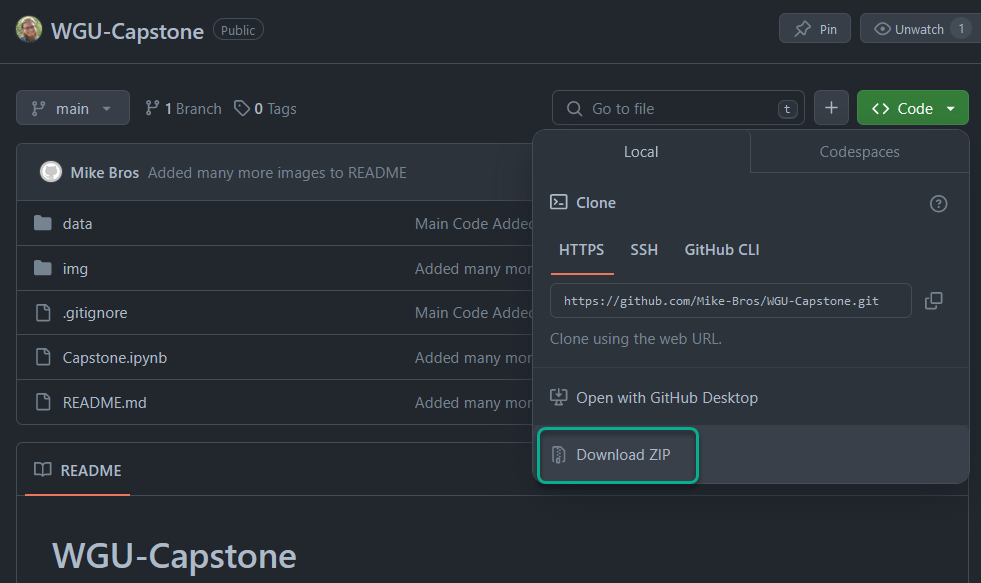
- Download this dataset from Kaggle.
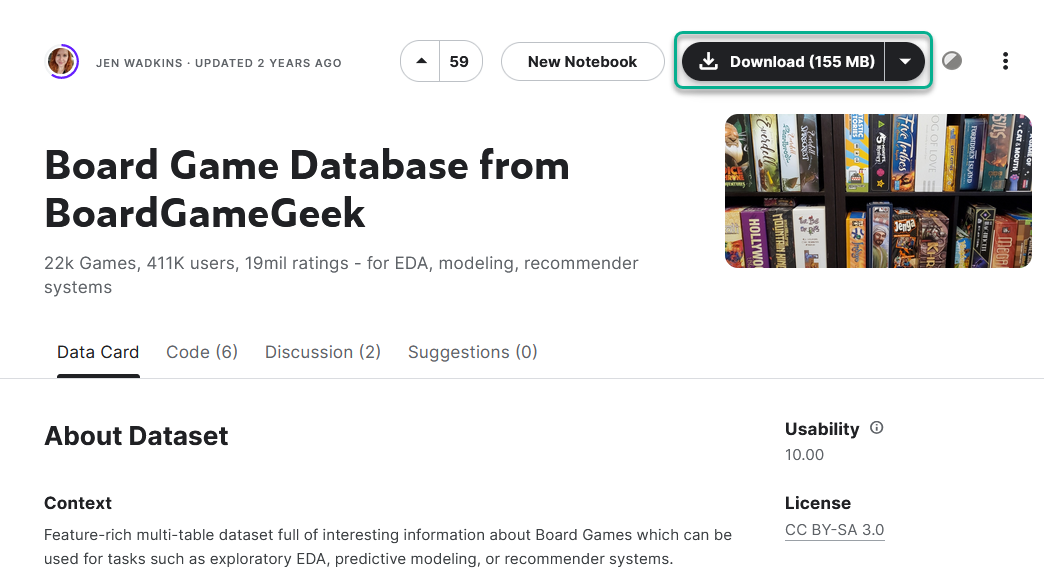
- Rename the downloaded zip file to
board-games.zipand place it in the data folder of the project directory created in step 1. - Ensure Google Chrome is installed.
- Navigate to the project directory in the command prompt.
- Ensure Python is installed.
- Running
python --versionshould returnPython 3.10.5or higher. - How to Install Python on Windows 10/11 - Tutorial provided by Digital Ocean, follow all optional step.
- Running
- Ensure Jupyter Notebook is installed.
- Verify Jupyter Notebook is installed by running
jupyter --versionin the project directory command prompt. - If Jupyter Notebook is not installed, run
pip install jupyterin the project directory command prompt.
- Verify Jupyter Notebook is installed by running
- Run
jupyter notebook --port <open_port>in the project directory command prompt.- Replace
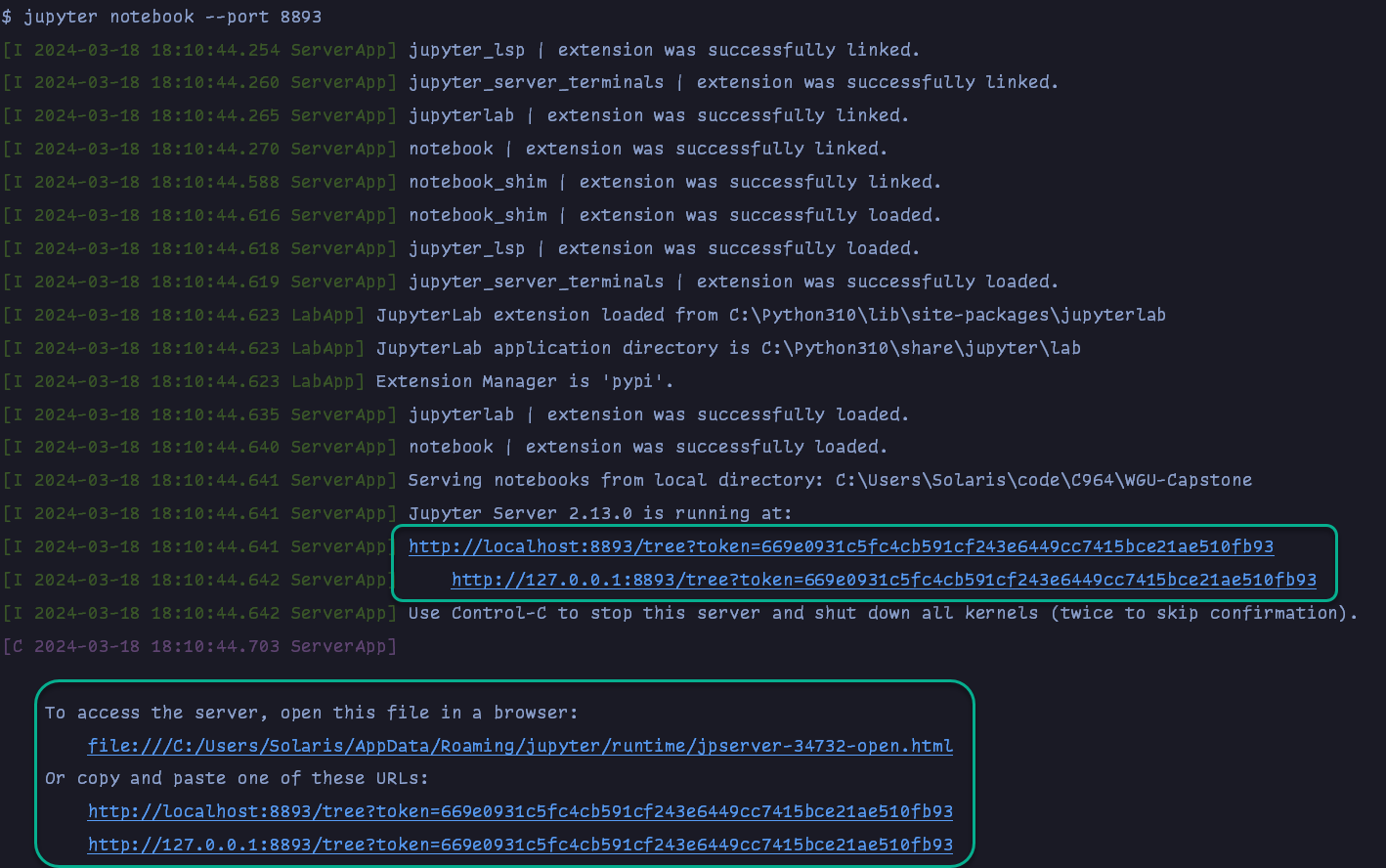
<open_port>with an open port on your machine such as8888. - The command prompt will display a URL such as
http://localhost:8888/tree?token=.... - Copy and paste the URL into Google Chrome to open the Jupyter Notebook.
- Replace
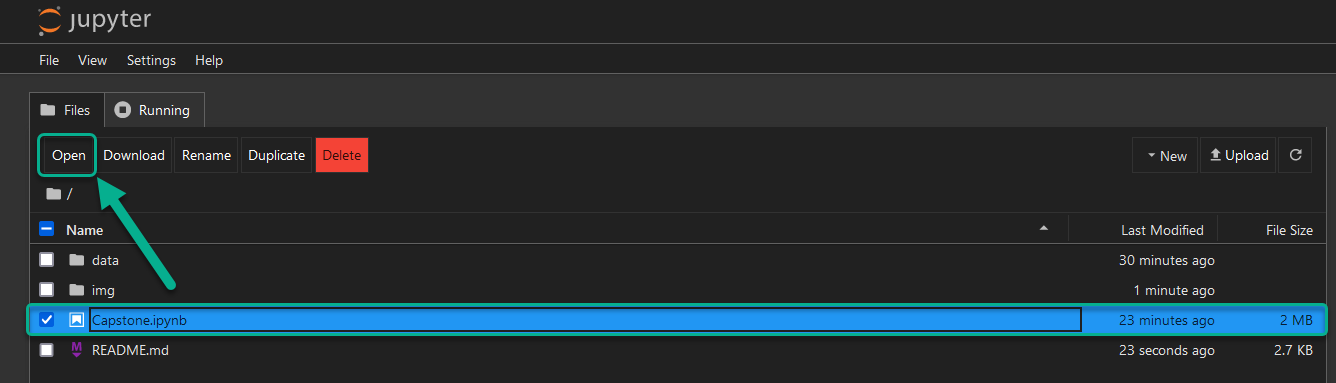
 9. This will open the tree view of the project directory in Jupyter Notebook. Select
 Capstone.ipynb and click the "
Open" button to open the notebook in a new tab.
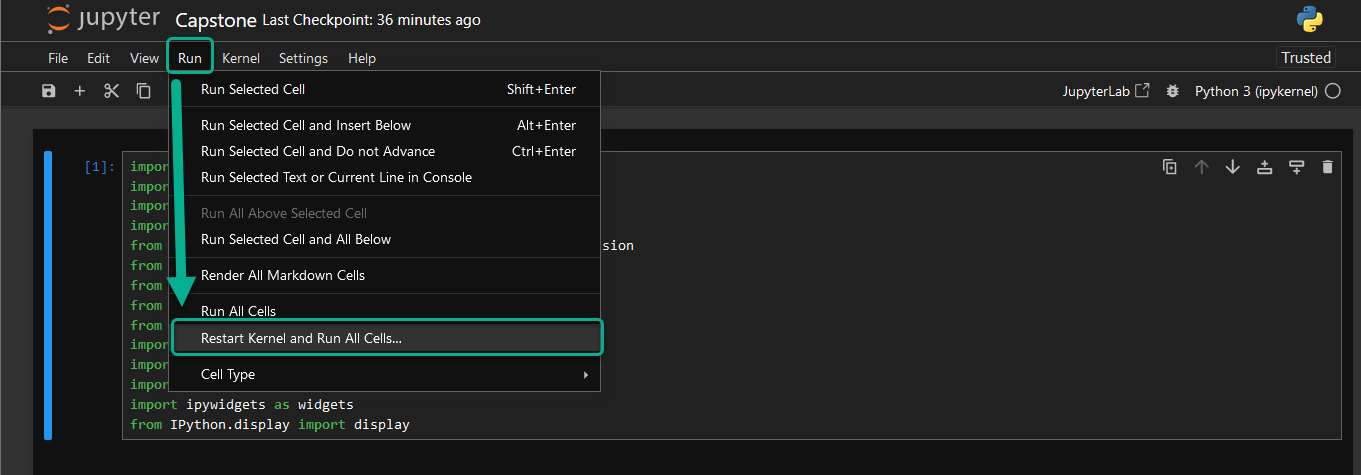
 10. Run the notebook by clicking the menu "Run"-> "Restart Kernel and Run All Cells". This will run the entire notebook
and display the results. Alternatively, you can run each cell individually by clicking the "Run" button in the top.
10. Run the notebook by clicking the menu "Run"-> "Restart Kernel and Run All Cells". This will run the entire notebook
and display the results. Alternatively, you can run each cell individually by clicking the "Run" button in the top.
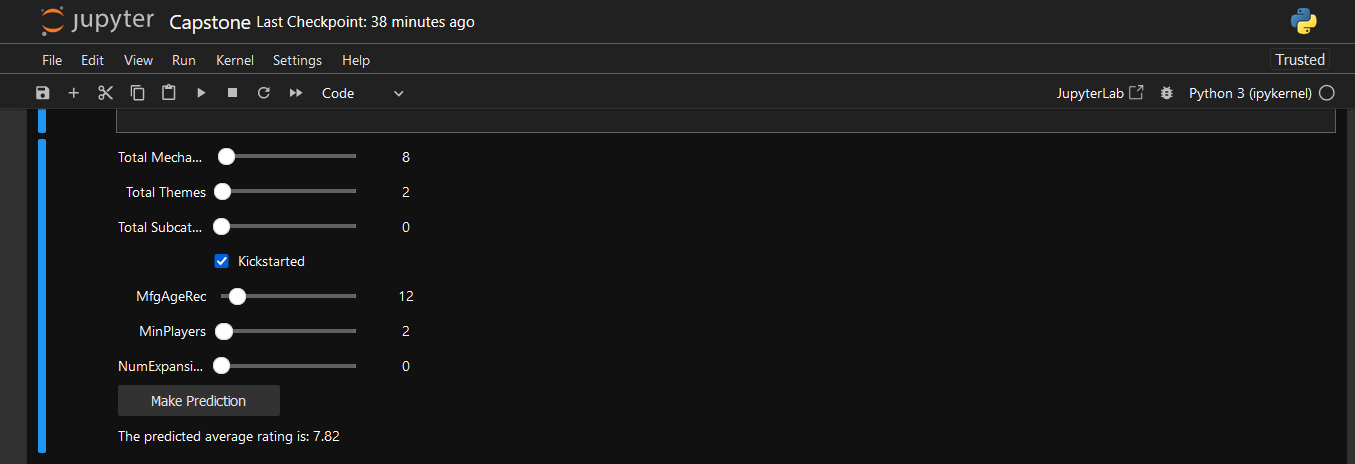
 11. The very end of the notebook has an interactive section where you can input your own values to predict the average
rating of a board game using the best performing model from the notebook.
11. The very end of the notebook has an interactive section where you can input your own values to predict the average
rating of a board game using the best performing model from the notebook.